Before you start
Stripe is a Direct payment gateway. That means you are the merchant. Money is paid to your own Stripe account, and you are responsible for handling your own tax and invoicing. If you would rather have the provider act as seller of record and deal with tax for you, read Stripe vs Merchant of Record first.
You will need a Stripe account. If you do not have one yet, sign up at stripe.com. Everything below can be done in Test mode first, with no real money involved.
Step 1: Choose Stripe in the plugin
Open the Listeo Subscriptions admin screen and go to the Settings tab. At the top you will see provider logo toggles. Click the Stripe logo to select it as your active provider.
- Open Listeo Subscriptions > Settings.
- Click the Stripe provider logo toggle.
- The Stripe credentials and webhook fields appear below.
Step 2: Set the Mode and add your secret keys
The Stripe credentials section is where you tell the plugin which Stripe account to use, and whether you are testing or going live.
- Mode – A dropdown with two choices: Test and Live. This single setting controls which keys and which price IDs the plugin uses. Start in Test while you set things up.
- Test secret key – Your Stripe Test secret key. Used whenever Mode is set to Test.
- Live secret key – Your Stripe Live secret key. Used whenever Mode is set to Live.
Both secret key fields are password fields, so the value is hidden as you type. If a key is already saved, the field shows a placeholder instead of the real value. In that case you can leave it blank to keep the saved value and just save your other changes.

Where to get the keys
Get your keys from the Stripe Dashboard:
- Log in to your Stripe Dashboard.
- Go to Developers > API keys.
- Copy the test secret key for Test mode, and the live secret key for Live mode.
- Paste each one into the matching field in the plugin.

Step 3: Register the webhook in Stripe
A webhook is how Stripe tells your site when something happens, such as a successful payment or a cancelled subscription. Without it, customers could pay but not get access. The Stripe webhooks section handles this.
Endpoint URL
A read-only, copyable field. This is the address you give to Stripe. It looks like this:
https://YOUR-SITE.com/wp-json/listeo-recurring-packages/v1/stripe/webhookCopy that Endpoint URL, then set up the webhook in Stripe:
- In the Stripe Dashboard, go to Developers > Webhooks > Create a webhook (easy method – type it in search in Stripe Dashboard).

- In Event destination scope select default option “Your Account”
- API version – select the latest version
- In Events select the Subscriptions. If you want manually select from more events, make sure to subscribe to the events listed below.

- Continue -> Webhook Endpoint -> Continue
- Paste your Endpoint URL into the endpoint URL box.
- Save the endpoint.
- Open the new webhook and copy its signing secret (it starts with
whsec_). - Paste that secret into the matching Test or Live webhook secret field in the plugin (see Step 4).


Subscribe to exactly these events:
checkout.session.completedcheckout.session.expiredinvoice.paidinvoice.payment_failedinvoice.payment_action_requiredcustomer.subscription.createdcustomer.subscription.updatedcustomer.subscription.pausedcustomer.subscription.resumedcustomer.subscription.deleted
Step 4: Add the webhook secret in the plugin
Back in the plugin, paste the signing secret you copied from Stripe. There is one field per mode.
- Test/live webhook secret – The Stripe signing secret (starts with
whsec_) for your webhook. - Webhook status – A read-only indicator. It confirms when the plugin has received a properly signed Stripe event, so you can tell the connection is working.

Important Your server clock must be accurate. Stripe signs each event with a timestamp, and the plugin time-checks that signature. A clock that is off by too much will cause events to be rejected.
Step 5: Optional Stripe settings
Two extra toggles let you turn on Stripe features at checkout.
- Allow Stripe promotion codes – Lets customers enter a Stripe promotion code at checkout to get a discount.
- Enable Stripe automatic tax – Uses Stripe Tax to calculate tax automatically at checkout. Because Stripe is a direct gateway, tax handling is your responsibility, so this can help.
Important: You must have a valid head office address to enable automatic tax calculation in test mode. Visit https://dashboard.stripe.com/test/settings/tax to configure it, it applies to Live mode as well.
Test before going live
Always make a real test purchase in Test mode before switching to Live. In Test mode, the test secret key, test webhook secret, and your test price IDs all work together.
Customer billing portal
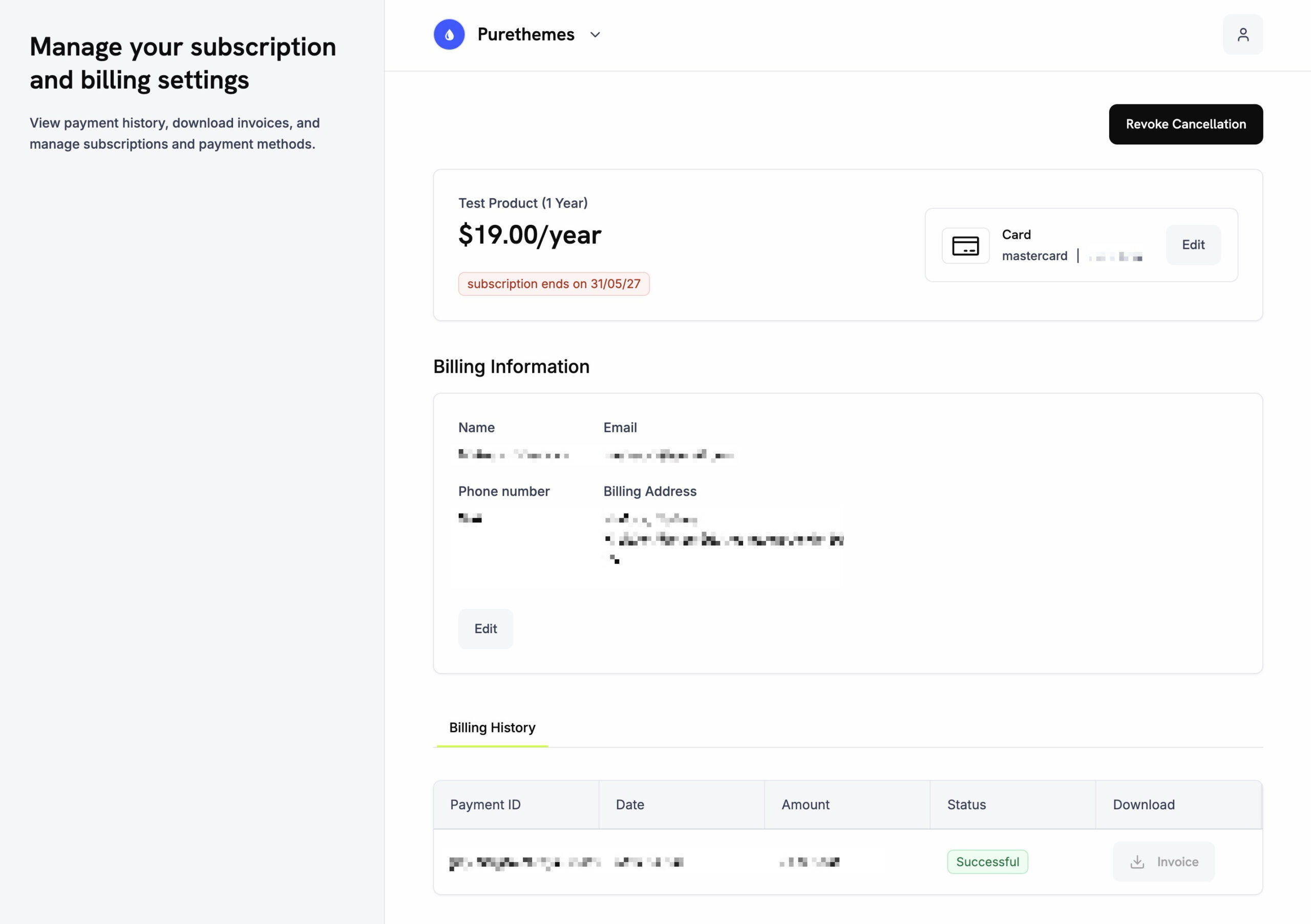
Stripe has a native customer billing portal. That means your customers can update their card details and cancel their subscription from their own account, without you having to do it for them.
What about price IDs?
Each recurring package needs a Stripe Price ID so Stripe knows what to charge. You set those per product later, on the Products tab. The fields are Test Stripe Price ID and Live Stripe Price ID, and both values start with price_.
In Stripe Dashboard go to Product Catalog and click Create Product

Set it as Recurring, match currency and price exactly how you have it for the package.
When you create it, it will show up on the list, then click 3 dots on the right, and select Copy price ID

Then paste price ID in plugin settings for each listing package