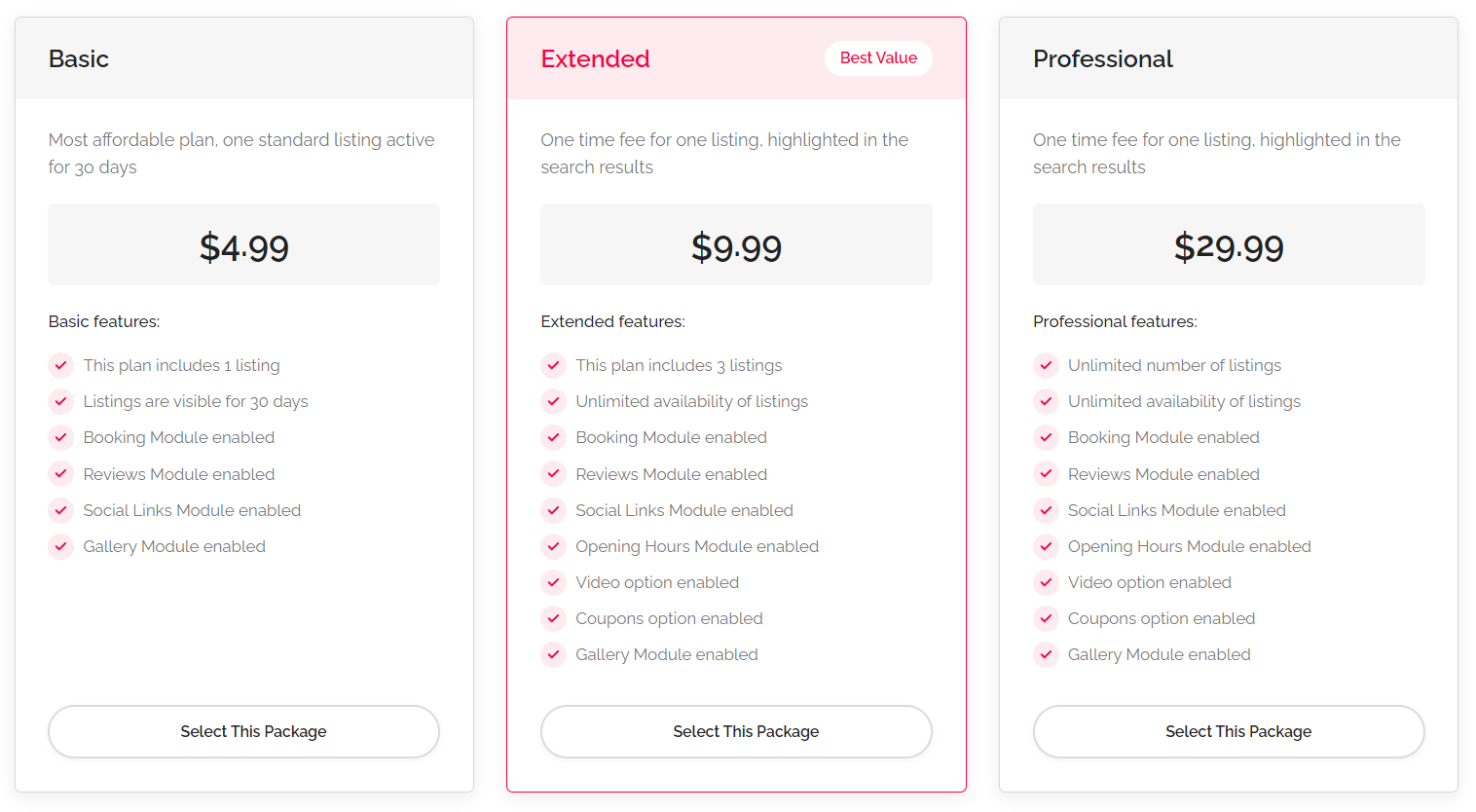
You can view the Listeo payment flowchart here →
How to add paid listing /product listing package?
Paid packages are basically WooCommerce products. To add new paid listing package go to WordPress dashboard → Products → Add new, change the Product Type to “Listing Package“. Now you can describe package and configure it.
You can require users to buy a listing package before submitting a listing, to do this first make sure paid listings feature is enabled in Listeo Core → Packages Options → Paid listings

Except the standard Price and Discount fields, you’ll see 3 new:
- Listing Limit – set the number of listings user can add after buying that package. Leave empty for unlimited submissions.
- Listing Duration – set how long the listings are visible until they are expired
- Featured Listing? if this checkbox is marked, all listings added using this package will be marked with “featured” badge
How to have different listing package for listing types?
Since Listeo 2.0.12, we’ve added an option to specify which Listing Types a package can be used with.
This allows you to create different products for different types of content and user groups — for example, you can offer higher-priced packages for Rentals and more affordable or even free packages for Events or Classifieds, etc.
When editing a package product, you’ll find the “Allowed Listing Types” option, which displays a list of all your Listing Types configured under Listeo Editor → Listing Types.

In the Submit Listing form, the first step is Listing Type selection, followed by Listing Package selection.
If you have configured any packages to be displayed for the selected Listing Type, only those packages will appear in the second step.
However, if no packages are assigned to a selected Listing Type, the system will display packages where “Allowed Listing Types” is left empty — meaning those packages are available for all Listing Types by default.
How to edit existing package?
Simply navigate to WP Admin → Products, filter products by “Listing Package” and click edit.
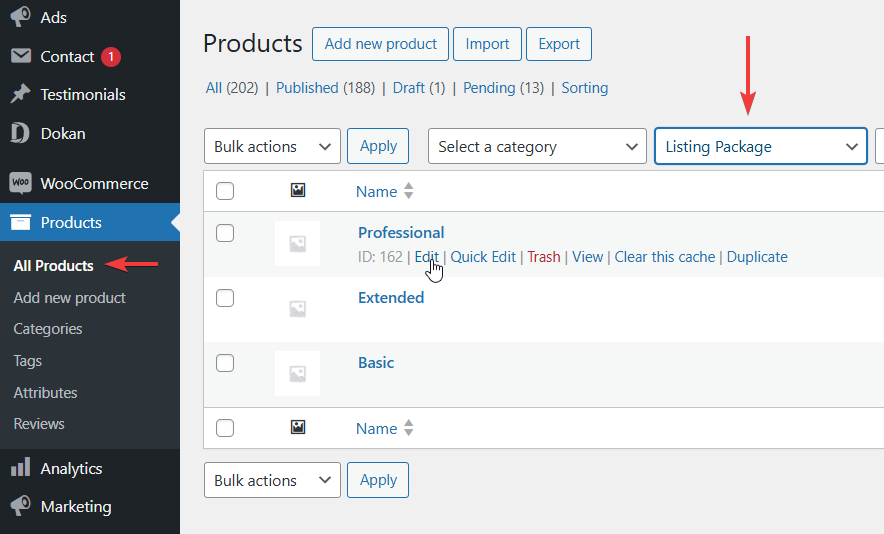
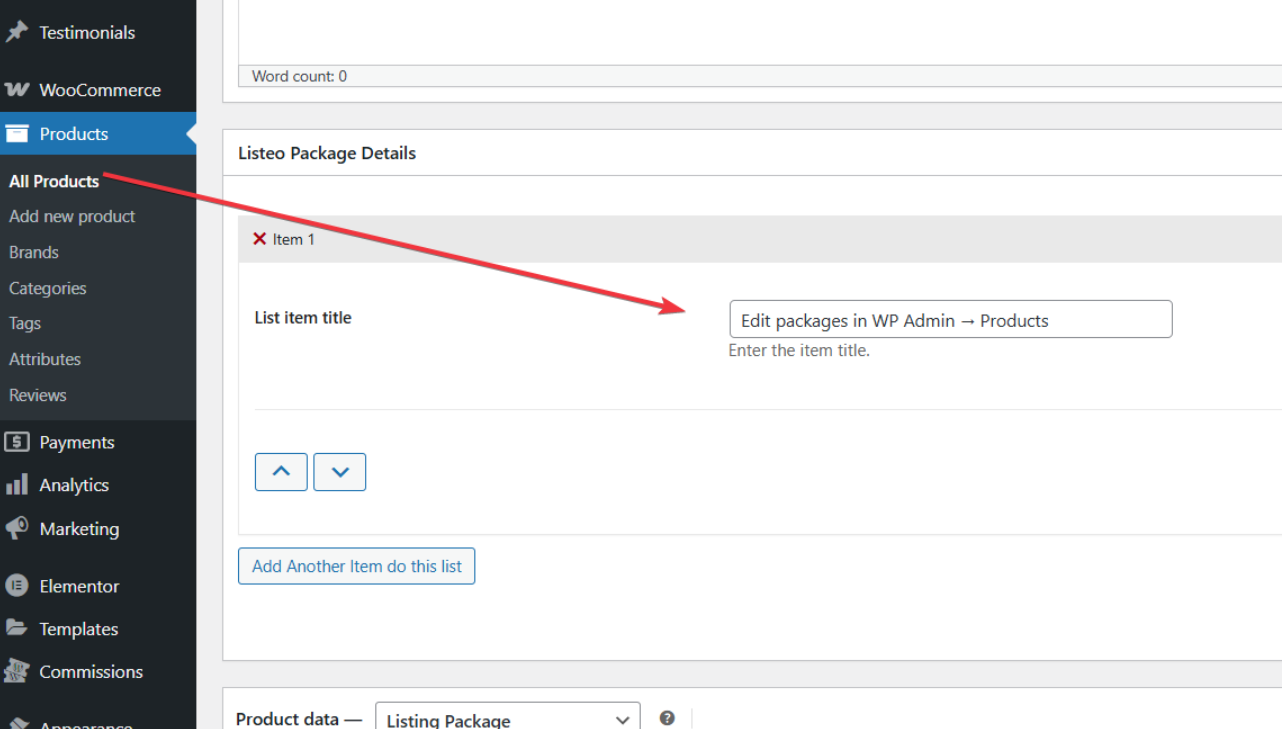
You can edit the features and checklist there. You can also change the dummy text “Edit packages in WP Admin → Products” and create your own list in Listeo Package Details section
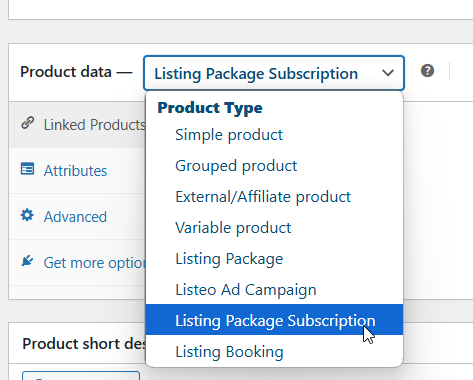
Subscription (Recurring) Support for Listing Packages
If you want to charge your user weekly/monthly/yearly for having listings active on your site, you have two choices:
- Our dedicated for Listeo plugin that works directly with Stripe/Paddle/Polar/Dodo Payments: Listeo Subscriptions Plugin

- Official WooCommerce Subscriptions plugin however it’s extremly pricey ($279/year). After installing it, you will have new type of product “Listing Package Subscription” where you can configure how it should work on your site.


Extra Listing Package Options
The current list of options is:
- Booking Module – makes setting booking options available in Listing and displays the Booking Widget in Single Listing Sidebar
- Reviews Module – adds option to review the listing
- Gallery Module – adds option to upload images to
- Gallery Images Limit – limits number of photos that can be uploaded to listing
- Social Links Module – adds option to set external social sites links
- Opening Hours Module – adds option to set Opening Hours and display them in the Opening Hours widget
- Video Module – adds option to add and display video in the listing
- Coupons Module – adds option to set Coupon for the listing and display it in the sidebar widget
- FAQ Section
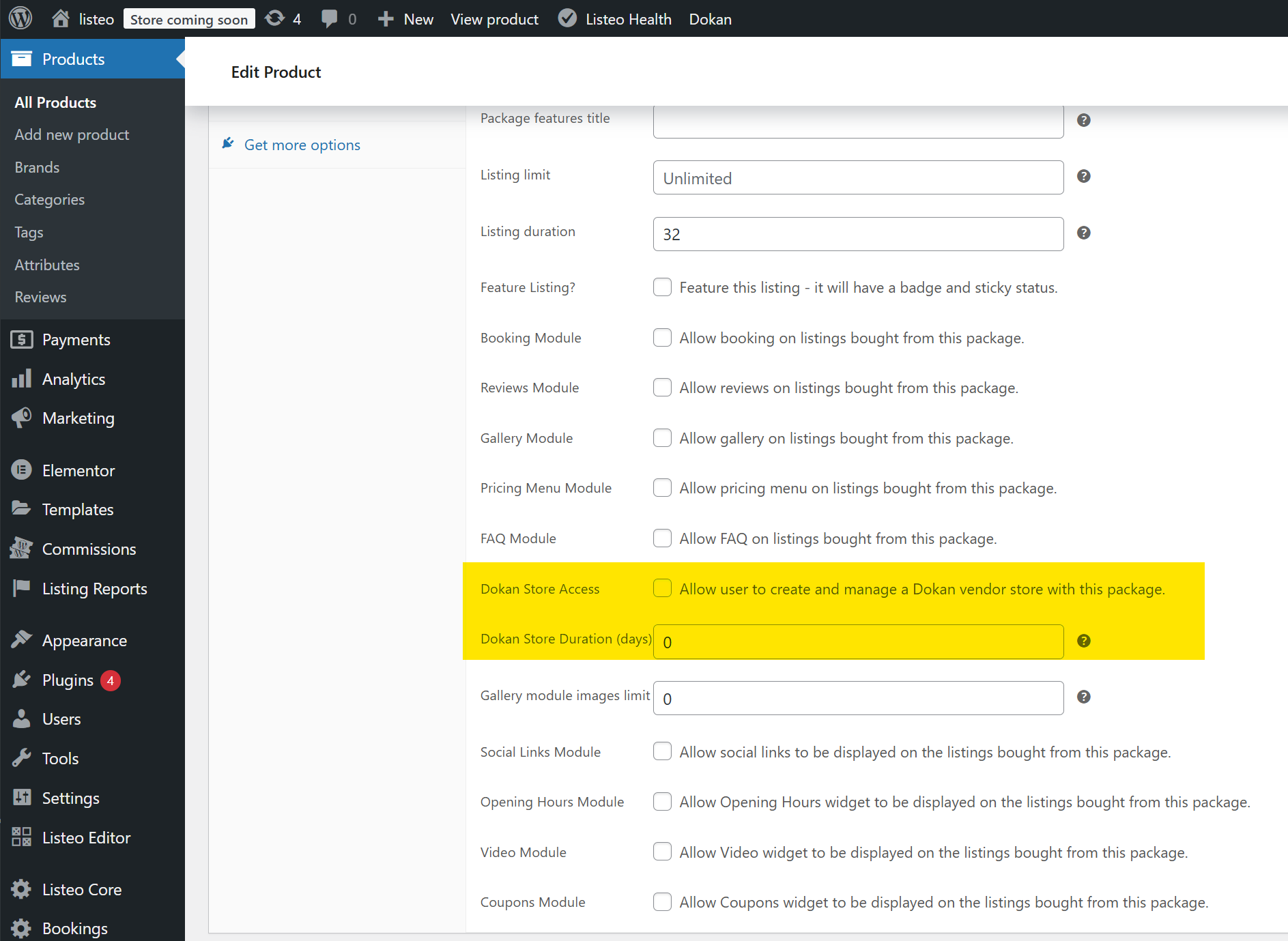
- Dokan Store Access and Duration – Allow user to create and manage a Dokan vendor store with this package.
Those options are enabled for all listings by default, so if you want to limit some or all of them, first go to Listeo Core → Packages Options → Check module to disable it in Submit Listing form.
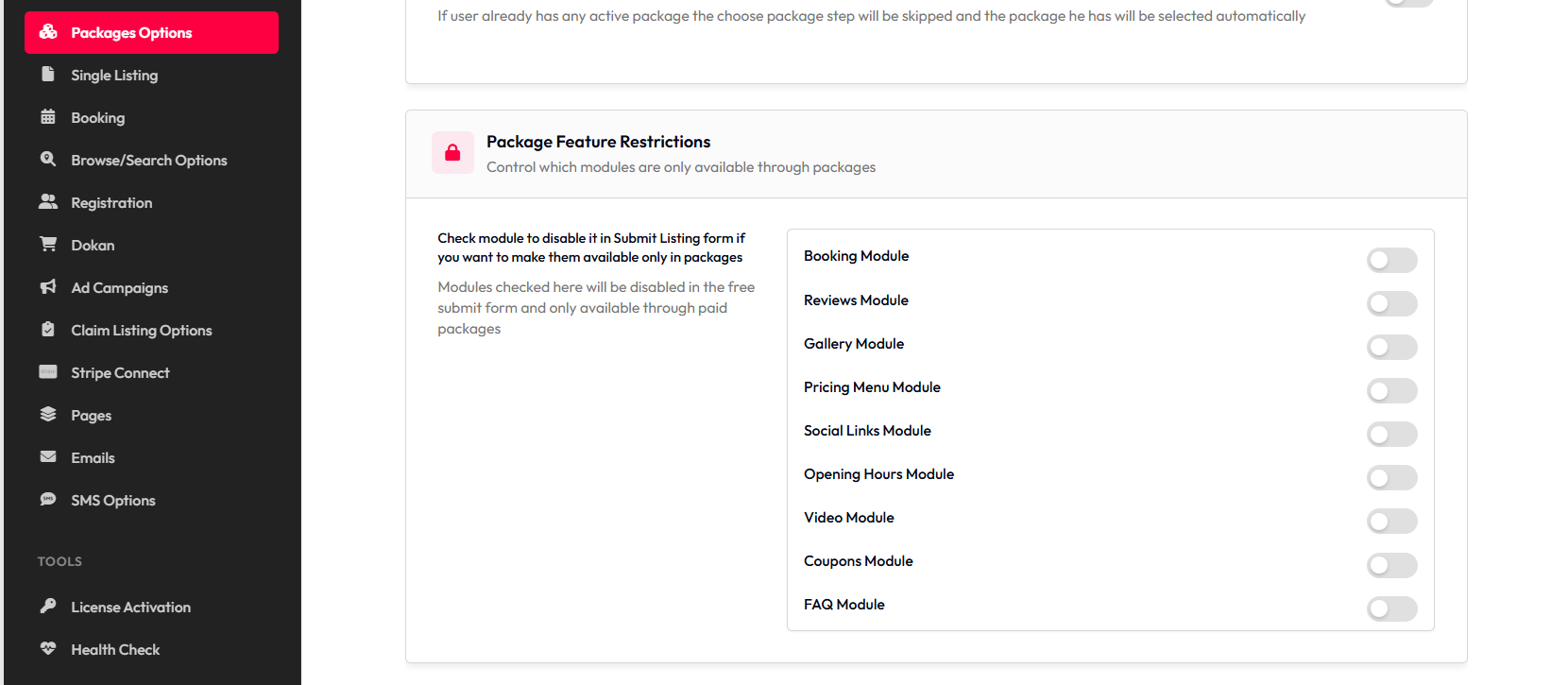
The modules you will check there will be now removed from Submit Listing Form and from Single Listing view, and will be only available if the Listing Package used to submit listing has those options.
To enable those elements in Listing Package, edit the WooCommerce Product and check with checkbox which elements this package allows.

How to make pricing package featured?
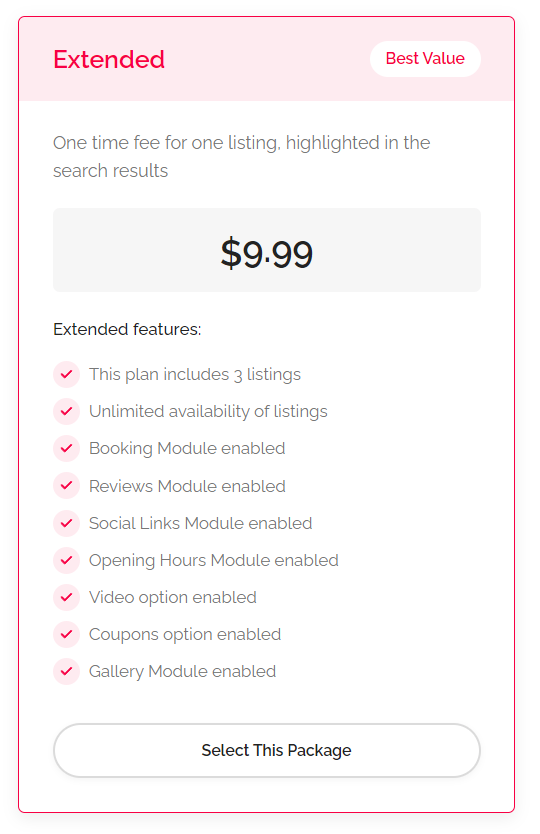
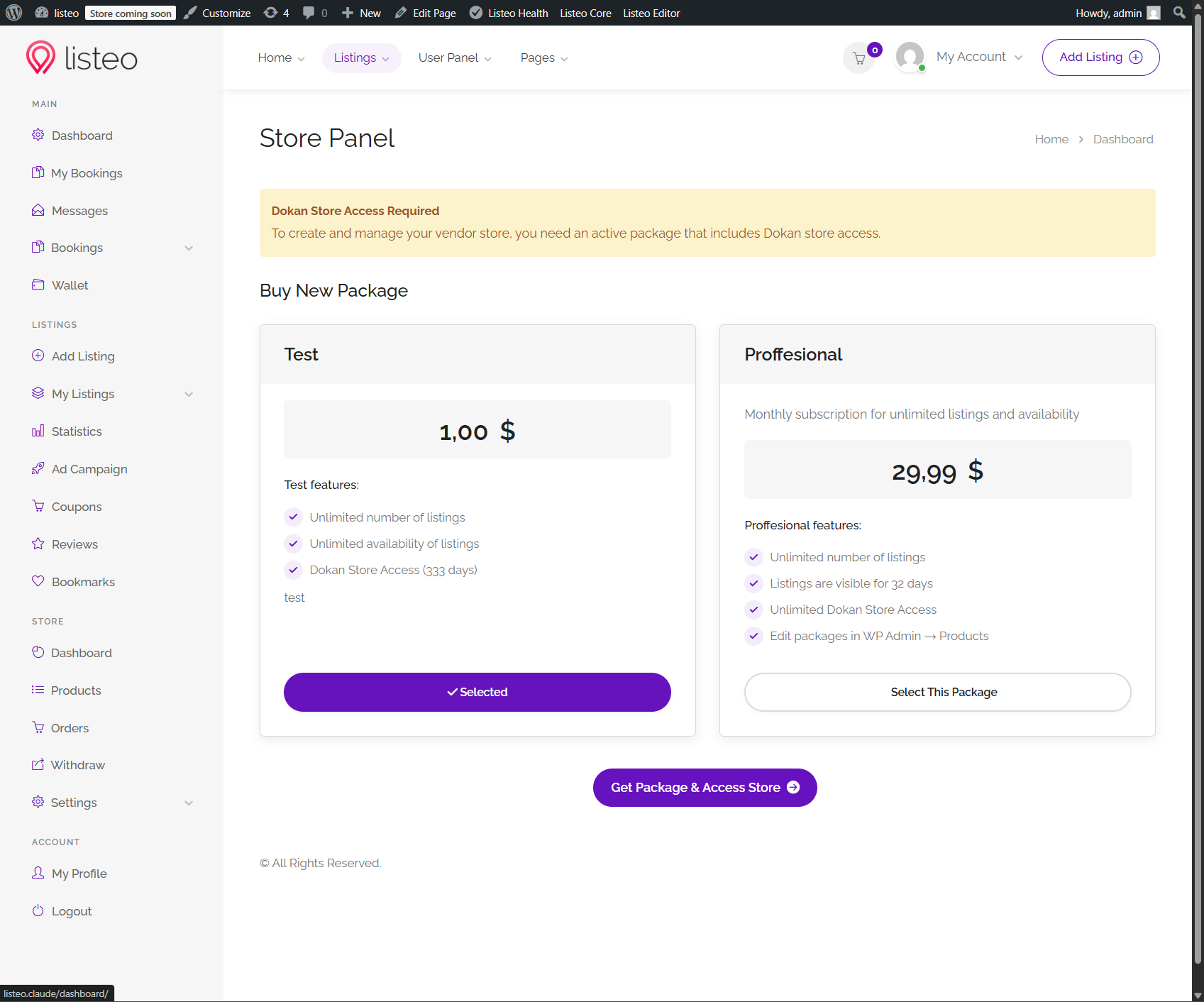
Dokan Store Access
You can allow user to create and manage a Dokan vendor store with paid package.
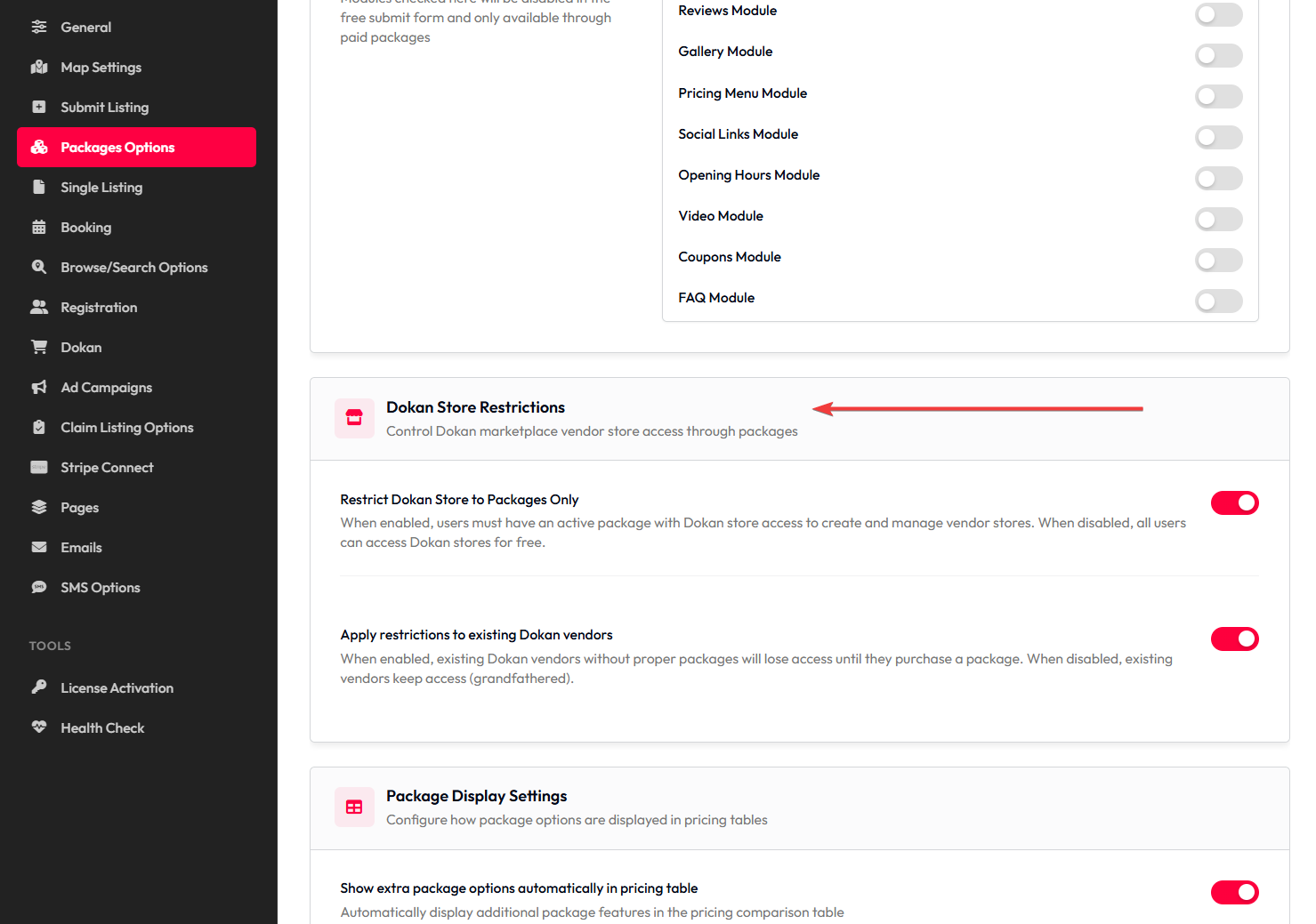
- Go to Listeo Core → Package Options → Dokan Store Restrictions and enable “Restrict Dokan Store to Packages Only” and optionally “Apply restrictions to existing Dokan vendors”

- Configure package settings in WooCommerce product settings

- When user will try to access Dokan without having active package they will see only packages that have Dokan Store Access setting enabled

Listing Package Manager
You can review and modify packages already purchased by your website users in Listeo Editor → Packages Manager.

there you can enable/disable package options or add new packages for users
Payment Gateways
Listeo Core → Packages Options
| Setting Name | Option/Details |
|---|---|
| Payment & Purchase Settings | |
| Paid listings | Requires purchasing a Listing Package checkbox |
| Allow packages to only be purchased once per client | Select packages that can only be purchased once per client checkbox_multi Options: All available listing packages |
| Skip package selection if user already has a package | Automatically skip package selection step if user has an active package checkbox |
| Package Feature Restrictions | |
| Check module to disable it in Submit Listing form | Disable specific modules based on package restrictions checkbox_multi Options: Booking Module, Reviews Module, Gallery Module, Pricing Menu Module, Social Links Module, Opening Hours Module, Video Module, Coupons Module, FAQ Module |
| Package Display Settings | |
| Show extra package options automatically in pricing table | Display additional package options in pricing tables checkbox |